Docker
2.3. Docker — The Containerized Path
The official image: Hermes Agent docker image
Tip: Pull the stable image tag, since Hermes is developing fast and the latest tag may contain bugs.
Example:
docker pull nousresearch/hermes-agent:stable
Full deployment with Docker Compose
Hermes Agent can be installed using Docker Compose with full configuration management — a better fit when you need to publish ports, set resource limits, or manage container-level settings centrally.
Prerequisites
- Docker and Docker Compose plugin installed (
docker compose versionshould work). - User has
sudoprivileges or is in thedockergroup. - Ports
8642and9119are available on the host (open in firewall if needed).
Prepare Directory
mkdir -p ~/hermes && cd ~/hermes
mkdir -p data
Place the docker-compose.yml file (below) in ~/hermes.
Check the UID/GID of the host user that should own the data/ folder (you will need them in docker-compose.yml):
id -u && id -g # usually 1000 and 1000 for the first user on Debian/Ubuntu
Directory structure after this step:
hermes/
├── docker-compose.yml
├── .env              ← "compose-level" .env, created in the next step
└── data/              ← Hermes stores its own data here
    └── .env           ← "Hermes-level" .env, created by Hermes itself (not by you)
Two different
.envfiles exist in this setup. They have different owners and different purposes. See Two.envfiles below before you put any secret anywhere.
docker-compose.yml
services:
  hermes:
    image: nousresearch/hermes-agent:stable
    container_name: hermes
    restart: unless-stopped
    command: gateway run
    shm_size: '2g'
    ports:
      - "8642:8642"
      - "9119:9119"
    volumes:
      - ./data:/opt/data
      - /etc/localtime:/etc/localtime:ro
      - /etc/timezone:/etc/timezone:ro
    env_file:
      - .env
    environment:
      - HERMES_UID=1000
      - HERMES_GID=1000
      - GBRAIN_TOKEN=${GBRAIN_TOKEN}
      - HERMES_DASHBOARD=1
      - HERMES_DASHBOARD_HOST=0.0.0.0
      - HERMES_DASHBOARD_BASIC_AUTH_USERNAME=${HERMES_DASHBOARD_BASIC_AUTH_USERNAME}
      - HERMES_DASHBOARD_BASIC_AUTH_PASSWORD=${HERMES_DASHBOARD_BASIC_AUTH_PASSWORD}
      - HERMES_DASHBOARD_BASIC_AUTH_SECRET=${HERMES_DASHBOARD_BASIC_AUTH_SECRET}
    deploy:
      resources:
        limits:
          memory: 4G
          cpus: "2.0"
Note that there are no TELEGRAM_* variables in this file. The Telegram bot token and allowed user IDs are entered into Hermes itself (via hermes setup or hermes config set, see Configure Telegram) and are stored in data/.env.
Set HERMES_UID / HERMES_GID to the values printed by id -u / id -g if they are not 1000.
Create the compose-level .env file
Create .env in the same directory as docker-compose.yml:
nano .env
Paste the following, replacing <...> with your actual values:
# --- Dashboard auth (required in newer Hermes versions) ---
HERMES_DASHBOARD_BASIC_AUTH_USERNAME=admin
HERMES_DASHBOARD_BASIC_AUTH_PASSWORD=<strong password you choose>
HERMES_DASHBOARD_BASIC_AUTH_SECRET=<output of: openssl rand -hex 32>
Generate your own secret for the dashboard session signing:
openssl rand -hex 32
Protect this file:
chmod 600 .env
Do not commit .env to git. If using git, add .env and data/ to .gitignore.
Two .env files: compose-level vs Hermes-level
~/hermes/.env (next to docker-compose.yml) | ~/hermes/data/.env (inside the data folder) | |
|---|---|---|
| Created by | You, before the first start | Hermes, on first start / when you run hermes setup |
| Read by | Docker Compose | Hermes itself (inside the container, at /opt/data/.env) |
| Purpose | Container settings and values substituted into docker-compose.yml via ${...} | Hermes’ own configuration and secrets: provider API keys, Telegram bot token, allowed users, etc. |
| Edited with | A text editor | hermes setup, hermes config set, or the dashboard (a text editor also works, but do not overwrite the whole file) |
| Lifetime | Lives with your compose project | Persistent state; survives container recreation because ./data is a volume |
| Typical contents | HERMES_DASHBOARD_BASIC_AUTH_*, GBRAIN_TOKEN | TELEGRAM_BOT_TOKEN, TELEGRAM_ALLOWED_USERS, LLM provider keys |
Rule of thumb:
- If the value configures how the container runs (ports, dashboard login, UID/GID), it belongs in the compose-level
.env/docker-compose.yml. - If the value configures what Hermes does (messaging platforms, model providers, API keys), it belongs in
data/.env, and you should set it through Hermes’ own commands.
Keep each variable in one place only. If the same variable exists in both files with different values, it is not obvious which one wins, and a value you change with hermes config set can appear to “not take effect”. Do not duplicate Telegram variables in the compose-level .env.
Why Telegram variables in the compose-level .env don’t work. env_file: and environment: only inject variables into the container’s environment. The Hermes gateway runs as a supervised service inside the container (see the next section), and does not reliably inherit that environment. In practice the gateway reads its credentials from data/.env, so a token that only exists in the compose-level .env is invisible to it. The symptom is this line in the logs:
WARNING gateway.run: telegram is enabled but no profile (default or secondary)
provided a bot credential for it — the platform is not being served.
What is s6 inside the container?
The image uses s6-overlay, a small init and process supervisor made for containers. Instead of running hermes gateway run directly as the container’s main process, the container starts like this:
- Init stage (as root): s6 runs setup scripts (
/etc/cont-init.d/*). These applyHERMES_UID/HERMES_GIDto thehermesuser, sync bundled skills intodata/skills/, and fix permissions. - Service stage (as
hermes): s6 starts and supervises the long-running services: the gateway (messaging platforms + cron scheduler) and, ifHERMES_DASHBOARD=1, the web dashboard. - Supervision: if a service crashes, s6 restarts it automatically without restarting the whole container.
Things worth knowing because of this design:
- You will see s6 lines (
s6-rc: info: service ... starting) indocker compose logs. They are normal. - Service processes started by s6 do not necessarily see the variables you pass with
env_file:/environment:. This is why Hermes keeps its own settings indata/.env. - To opt out of supervision and get the old foreground behavior, set
HERMES_GATEWAY_NO_SUPERVISE=1(or runhermes gateway run --no-supervise). Most users should keep the default. - The container starts as root only so that the init stage can change the UID/GID; the services themselves do not run as root.
Obsidian Vault
To connect Hermes to an Obsidian Vault, configure both a Docker volume mount and OBSIDIAN_VAULT_PATH. Setting only the variable does not mount the Vault into the container. See Obsidian for the configuration and read-only verification prompt.
Environment Variables Explained
Set in docker-compose.yml / compose-level .env:
| Variable | Description |
|---|---|
HERMES_UID / HERMES_GID | UID/GID that the hermes user inside the container runs as. Set them to the same values as your host user (id -u / id -g) so files in ./data belong to you and you can read/edit them without sudo. Default inside the image is 10000. |
HERMES_DASHBOARD=1 | Enables the web dashboard. |
HERMES_DASHBOARD_HOST=0.0.0.0 | Makes dashboard listen on all network interfaces in the container (published to host port via ports:). |
HERMES_DASHBOARD_BASIC_AUTH_USERNAME / _PASSWORD | Dashboard login credentials — required when binding to 0.0.0.0. |
HERMES_DASHBOARD_BASIC_AUTH_SECRET | Secret used to sign session tokens; keep consistent across restarts to avoid logout. |
Set through Hermes, stored in data/.env:
| Variable | Description |
|---|---|
TELEGRAM_BOT_TOKEN | Token for Hermes to control your Telegram bot (get it from @BotFather). |
TELEGRAM_ALLOWED_USERS | Blocks unauthorized users — only listed numeric Telegram user IDs can send commands. Separate multiple IDs with commas. |
About ports:
8642:8642— Main Hermes API/gateway port.9119:9119— Dashboard web port, accessible viahttp://<server-ip>:9119.
About shm_size: '2g' — Increases shared memory for the container, useful because Hermes uses a headless Chromium browser and heavy tasks internally (Chromium can crash with the default 64 MB).
About deploy.resources.limits — Limits the container to max 4GB RAM and 2 CPU cores. Docker Compose v2 applies these limits for regular docker compose up. If your Compose version ignores them, use mem_limit / cpus at service level instead.
Note: If you need to share a network (
hermes-net) with other containers, add:networks: - hermes-net networks: hermes-net: external: true name: hermes-net
File Ownership: HERMES_UID and HERMES_GID
Why this matters. By default the process inside the container runs as the hermes user with UID/GID 10000. Every file it writes into ./data (config, API keys, memory, logs) is therefore owned by UID 10000, often with strict permissions (600/700). Your normal host user (UID 1000) then cannot read or edit them, and you get Permission denied when you try cat ./data/config.yaml or edit files in the folder.
How it works. As described in the s6 section, the container starts as root, the init stage changes the hermes user to the UID/GID you set in HERMES_UID / HERMES_GID, fixes ownership, and then services run as that user. Hermes still does not run as root, but its files now belong to your host user.
Do not add
user: "1000:1000"to the compose file. The init stage needs to start as root to apply the UID/GID change; forcinguser:skips that step and usually causes permission errors.
New installation. If you created data/ yourself with mkdir -p data (as above), it is already owned by your user. Just set HERMES_UID and HERMES_GID in docker-compose.yml before the first docker compose up -d. No extra step is needed.
Existing installation (the chown step). If Hermes has already run without these variables, the existing files in ./data are still owned by UID 10000. Changing the variables does not fix the old files automatically, so change their owner once:
cd ~/hermes
docker compose down                       # stop first to avoid writing files while changing ownership
sudo chown -R 1000:1000 ./data            # use your own values from `id -u` / `id -g`
# add/confirm HERMES_UID=1000 and HERMES_GID=1000 in docker-compose.yml
docker compose up -d
docker compose logs -f hermes             # look for a line like "Changing hermes UID to 1000"
Verify the result:
docker exec hermes id                     # expected: uid=1000(hermes) gid=1000(hermes)
ls -ln ./data                             # owner and group should be 1000 1000
Impact on Hermes. None in normal use. All data, config and memory are preserved; only the owner of the files changes. Hermes keeps running as a non-root user inside the container.
Rollback. If something goes wrong, stop the container, restore the old owner and remove the two variables:
docker compose down
sudo chown -R 10000:10000 ./data
# remove HERMES_UID / HERMES_GID from docker-compose.yml
docker compose up -d
Avoid
chmod -R 777 ./data. It “works”, butdata/contains tokens and API keys, so it should not be readable by every user on the host.
Start Hermes
cd ~/hermes
docker compose up -d
docker compose logs -f hermes
On the first start Hermes creates its own files inside ./data, including data/.env and data/config.yaml. Telegram is not working yet at this point: the bot token has not been entered. A line like telegram is enabled but no profile ... provided a bot credential in the log is expected until you finish the next step.
Configure Telegram: bot token and allowed users
Have these two values ready:
- Bot token: create a bot with @BotFather and copy the token (format
123456789:AAxxxxxxxx...). - Allowed user IDs: your numeric Telegram user ID (not your @username), for example from @userinfobot. Multiple IDs are separated by commas.
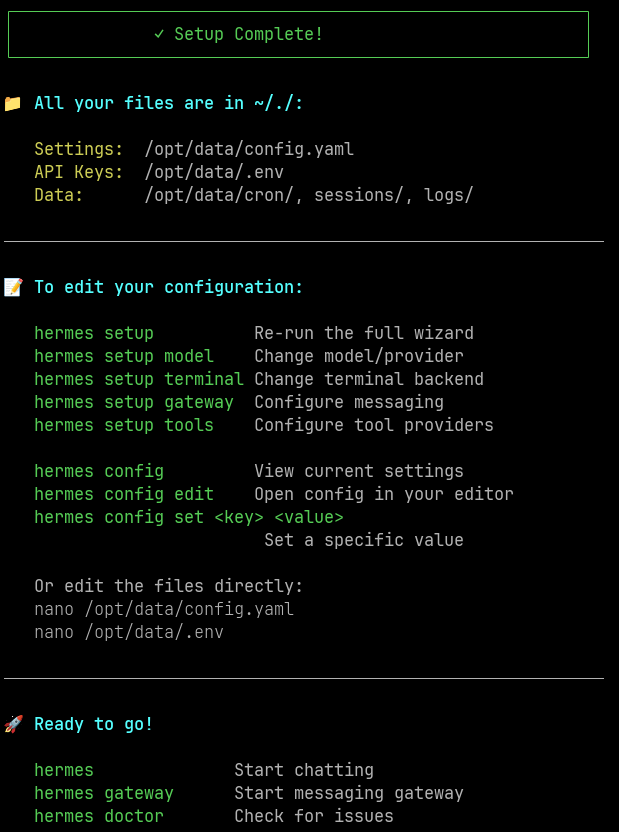
You can enter them in either of two ways. Both end up in the same place: the values are written to data/.env (./data/.env on the host, /opt/data/.env in the container).
Option A: during the setup wizard
Open a shell in the container as the hermes user and run the wizard:
docker compose exec -u hermes -it hermes /bin/bash
hermes setup
Use
-u hermesso commands run as the unprivilegedhermesuser. A root shell (plaindocker compose exec ... bash) would create files owned by root in./dataand can cause permission errors when the gateway runs ashermes.
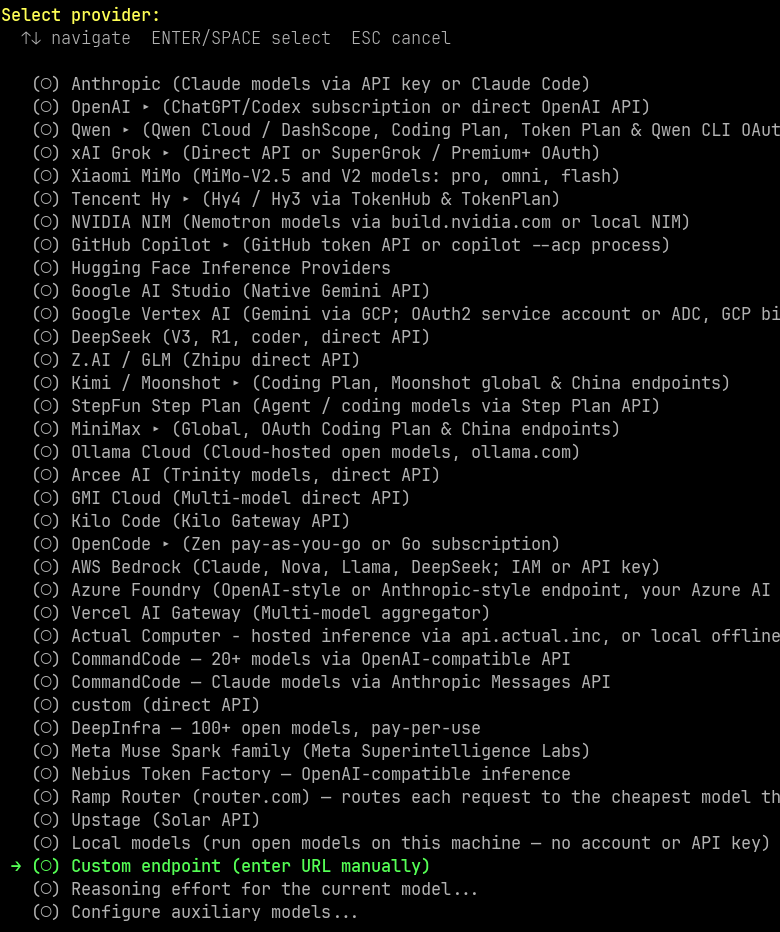
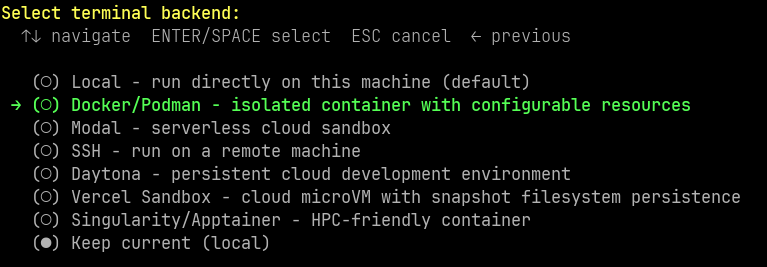
Pick your provider and the Telegram platform when asked, and paste the token and user ID(s).

Option B: set them later with hermes config set
Skip the Telegram part of the wizard (or set up later) and run, inside the container shell:
hermes config set TELEGRAM_BOT_TOKEN '123456789:AAxxxxxxxxxxxxxxxxxxxxxxxxxxxxxxxxx'
hermes config set TELEGRAM_ALLOWED_USERS '8945198970'
Or run the same commands directly from the host, from any directory, without opening a shell:
docker exec -u hermes hermes hermes config set TELEGRAM_BOT_TOKEN '123456789:AAxxxxxxxxxxxxxxxxxxxxxxxxxxxxxxxxx'
docker exec -u hermes hermes hermes config set TELEGRAM_ALLOWED_USERS '8945198970'
(-u hermes = user inside the container, first hermes = container name, second hermes = the CLI.)
For several allowed users: hermes config set TELEGRAM_ALLOWED_USERS '111111111,222222222'.
Verify and restart
Check that the values were written (token masked):
grep -n "TELEGRAM" ./data/.env | sed 's/=.*/=***/'
Restart the container and confirm the warning is gone:
docker compose restart hermes
docker compose logs --tail=30 hermes
Then send a message to your bot in Telegram.
Security tip: the token ends up in your shell history when typed on the command line. Delete the entry afterwards (
history -d <line-number>) or start the command with a space if your shell hasHISTCONTROL=ignorespace. Never put the token indocker-compose.ymlor the compose-level.envas well, to avoid two copies drifting apart.
Access Dashboard
Open browser:
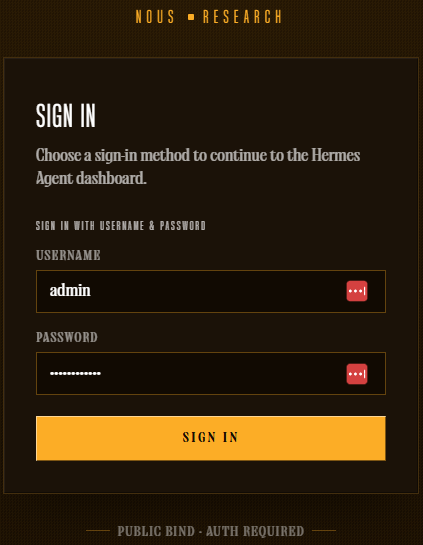
http://<server-ip>:9119
Login with HERMES_DASHBOARD_BASIC_AUTH_USERNAME / HERMES_DASHBOARD_BASIC_AUTH_PASSWORD from the compose-level .env.
Useful Commands
| Task | Command |
|---|---|
| View realtime logs | docker compose logs -f hermes |
| Restart container | docker compose restart hermes |
| Stop | docker compose down |
| Update to new image | docker compose pull && docker compose up -d |
Apply changes made in docker-compose.yml or the compose-level .env | docker compose up -d --force-recreate |
| Enter container shell | docker compose exec -u hermes -it hermes /bin/bash |
| Run a Hermes command without entering the shell (from any directory) | docker exec -u hermes hermes hermes <command> |
Set a Hermes variable (written to data/.env) | docker exec -u hermes hermes hermes config set KEY 'value' |
List Telegram variables in data/.env (masked) | grep -n TELEGRAM ./data/.env | sed 's/=.*/=***/' |
| Check which user Hermes runs as | docker exec hermes id |
Fix ownership of ./data | docker compose down && sudo chown -R $(id -u):$(id -g) ./data && docker compose up -d |
| Check generated config | cat ./data/config.yaml |
Note: docker restart hermes restarts the container but does not pick up changes in docker-compose.yml or the compose-level .env. Use docker compose up -d --force-recreate for that. Changes made with hermes config set (stored in data/.env) only need a restart.
Additional Security Recommendations
- If your server has a public IP, restrict port
9119/8642in firewall to your IP only, instead of opening to the entire internet. You can also publish them on localhost only ("127.0.0.1:9119:9119") and reach them through a reverse proxy or VPN. - Consider placing Hermes behind a reverse proxy (Nginx/Caddy) with HTTPS if accessing dashboard remotely frequently.
- Change dashboard password periodically; don’t reuse passwords from other services.
- Backup
./datadirectory regularly as it containsconfig.yaml,.env(all your secrets) and Hermes state data. Treat backups as sensitive.
Troubleshooting
Telegram bot does not reply; log shows telegram is enabled but no profile (default or secondary) provided a bot credential
→ The gateway cannot find the bot token. Make sure TELEGRAM_BOT_TOKEN exists in data/.env (not only in the compose-level .env):
grep -n "TELEGRAM" ./data/.env | sed 's/=.*/=***/'
If missing, set it with hermes config set (see Configure Telegram) and restart.
Telegram bot connects but ignores your messages
→ TELEGRAM_ALLOWED_USERS is empty or wrong. It must contain your numeric user ID, not your username.
Log shows Conflict: terminated by other getUpdates request
→ Another instance (an old container, another server) is using the same bot token. Stop it (docker ps -a).
Still seeing “Refusing to bind dashboard to 0.0.0.0”
→ Check that the compose-level .env has all three HERMES_DASHBOARD_BASIC_AUTH_USERNAME/PASSWORD/SECRET variables, and the container is reading the correct .env file (relative path must match the directory where you run docker compose up).
Permission denied when reading ./data on the host, or Hermes cannot write to /opt/data
→ UID/GID mismatch. Check ls -ln ./data and docker exec hermes id: both should show the same UID/GID as id -u / id -g. If not, set HERMES_UID / HERMES_GID in docker-compose.yml and run the chown step in File Ownership above (docker compose down first).
A value changed with hermes config set seems ignored
→ The same variable probably also exists in the compose-level .env / docker-compose.yml with a different value. Keep each variable in one place only.
Container won’t start / exits immediately
→ Check logs: docker compose logs hermes. Usually due to missing required variables or invalid token format.
Notes
- Always mount the volume outside the container from the very first run command (
./data:/opt/datawith Compose,~/.hermes:/opt/datawithdocker run) — skipping this step makes all configuration/memory disappear when the container is deleted, with no way to recover it. - Do not overwrite
data/.envas a whole file (for example by copying your compose-level.envover it, or by bind-mounting./.envonto/opt/data/.env). It holds all of Hermes’ own secrets and is rewritten by Hermes when you runsetup/config set. - On a VPS with the provider’s browser-based console, typing long
docker runcommands (with many-e KEY=valuevariables) directly through it is risky — the:,@,=characters are easily mis-transmitted, silently corrupting tokens/API keys. Always SSH in properly to run commands. - Combine with Tailscale (1.5).